
A Google review QR code is a printed square that opens your Google review form when a customer points a phone camera at it. You can get one free from your Google Business Profile, as long as you're on a computer. Getting the code is the easy part. This guide spends more time on what most guides skip: what size to print it, where to put it, and how to stay within Google's rules when you ask.
How to get your Google review QR code from Google
These steps come from Google's help page on review links and QR codes. Your business needs a Business Profile you manage.
Open your Business Profile in a browser on a computer. Google says these codes can't be generated on mobile devices.
Select Read Reviews, then Get more reviews. If your dashboard shows Ask for reviews instead, use that.
To save the code, right-click it and choose Save image as. To save the link, select Copy.
Keep the copied link somewhere safe. You'll need it for any other tool, and for sending in messages.
Before you print anything, scan the code with a phone that is signed out of Google. Google requires customers to be signed in to leave a review, so a signed-out customer gets a sign-in prompt first. That is normal, and it's better to see it now than to think your code is broken later.
Three ways to make the card, and how to choose
A QR code on its own is just an image. Someone still has to turn it into a thing that sits on a counter. You have three realistic routes.
Google's own code, in your own design
Choose this if you already print menus, receipts or table tents and only need an image to drop in. It costs nothing and points straight at your review form. The image is plain, so layout, wording and print size are up to you.
A QR code generator
Choose this only if you want your logo in the code or a count of scans. Those extras usually need a dynamic code, which sends each scan through the vendor's server before it reaches Google. That is what makes counting possible. It also means your printed cards depend on that vendor, and how long a dynamic code lasts depends on the provider and plan. Before you print 200 table tents, find out what happens to the code if you stop paying.
A ready-to-print card
Choose this if you want something on the counter today and have no designer. Linxli has one on the Free plan:
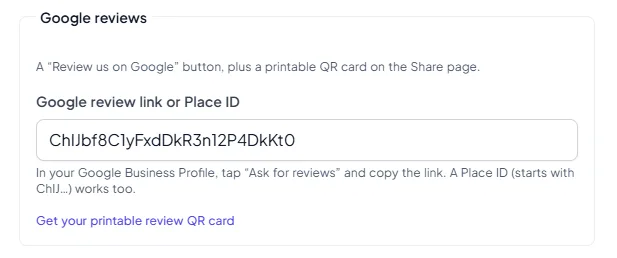
In Linxli, go to Edit profile, then Business tools, and find Google reviews.
Paste your Google review link. A Place ID, which starts with ChIJ, works too.
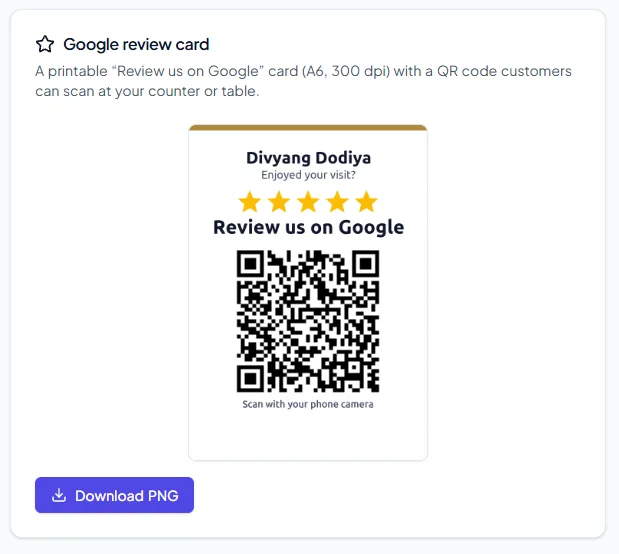
Open Share & QR code in the sidebar, find Google review card, and select Download PNG.
You get an A6 card (105 × 148 mm, about 4.1 × 5.8 inches) at 300 dpi. It shows your company name, the line "Enjoyed your visit?", five stars, "Review us on Google" and the code. The wording is fixed, so if you want your own line, use Google's code in your own layout. On Free there is a small "Made with Linxli" line at the bottom. Premium removes it, at $4/month or $29/year.
The code on the card holds your Google link directly, with no Linxli redirect in between. So a printed card keeps working even if you leave Linxli later. The trade-off is that we can't count scans of the card.
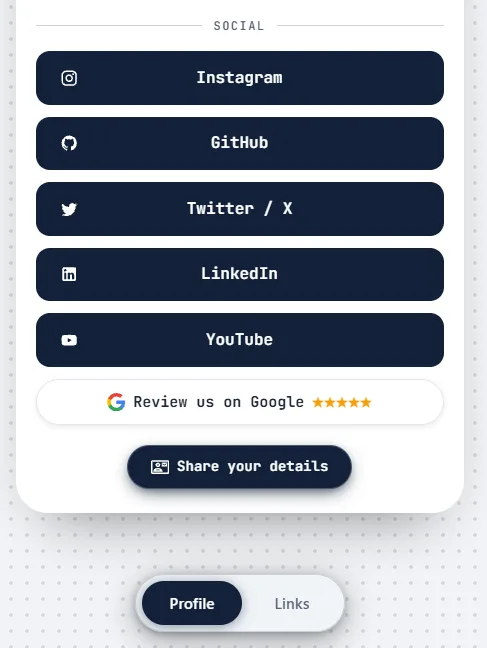
Saving the link also adds a Review us on Google button to your digital business card page, and taps on that button do show up in your Linxli analytics as "Opened your Google review page".
What size to print a QR code for Google reviews
The common rule of thumb is a 10:1 ratio of scanning distance to code size, with about 2 cm as the smallest size to aim for. It is a guideline and not a standard, but it is a good starting point. Here is what it works out to for real objects:
Back of a business card, 2.5 cm code: about 25 cm (10 inches). Fine, because the card is in the customer's hand.
A6 counter or table card, 6.4 cm code: about 64 cm (25 inches). This is the size of the code on the Linxli card, and it reaches from a chair to the table or across a counter.
A4 or US Letter sign, 12 to 13 cm code: about 1.2 m (4 feet). Good for a wall by the till or a door. The Linxli card can be scaled up to this size. The blocks stay sharp, though the text gets slightly softer.
Shop window read from 3 m away: you'd need a 30 cm code, which is a poster. For most shops, a smaller sign at eye level that people walk up to is the better choice.
Two details change whether a code scans at all.
Leave clear space around it. The QR code's inventor, Denso Wave, specifies a clear margin four modules wide on every side. A module is one of the small squares in the pattern. Don't let a border, photo or fold run up to the edge of the code.
Use the short link for small codes. Longer links need more squares. A short link of about 40 characters, like a g.page review link, makes a 29 × 29 grid at medium error correction. A long link of about 80 characters makes a 37 × 37 grid. On a 6.4 cm card that's a 2.2 mm square or a 1.7 mm square, and both are easy to scan. On a 2 cm code it's 0.7 mm or 0.5 mm, where a cheap printer starts to matter.
Print one copy first and try it with two different phones from where a customer would really stand.
Where to put it: wait until the job is done
Our rule is simple: put the code where customers are when you've finished serving them and they have a free hand. A code at the entrance asks people to review something that hasn't happened yet.
Café or restaurant: on the table, or on the tray that brings the bill.
Salon or barber: at the checkout, where people wait while paying.
Retail shop: beside the card reader, or printed on the receipt, which Google also suggests.
Plumber, electrician or cleaner: there's no counter, so print the code on the invoice or leave a card with the finished job.
Wedding photographer or consultant: skip the code. Your work ends on a screen, and a phone can't scan its own screen. Send the link in your delivery email or WhatsApp message.
A QR code is for paper. Anywhere the customer is already on a screen, use the link. If you run a local business and want one place for this link, your WhatsApp chat button and your payment link, see how Linxli works for small businesses.
What Google's rules allow
This is where some guides get it wrong in both directions. One guide ranking for this term recommends offering a discount for a review. A vendor blog says Google has banned any request on your premises, including at the counter. Here is what the pages said when we read them in November 2026.
Displaying the code in store is fine. Google's own help page says: "Print and display the QR code in your store."
Pressure is the line. Google's content policy says merchants "should not require or pressure users to leave ratings or write reviews while on the premises, nor should they request that specific content be included." A card a customer can ignore fits that wording. Waiting at the till until someone has posted does not. A spoken request at the counter is a gray area, so we'd send it by message afterward instead. The page doesn't mention kiosks or tablets, but a customer's own phone is the simple choice anyway.
Rewards are out, even for honest reviews. Google says that free or discounted goods or services in exchange for reviews are "strictly prohibited." This is stricter than US law. The FTC's rule on consumer reviews says it "does not prohibit giving incentives for reviews" as long as they aren't tied to a particular sentiment. So "10% off for a review" may be legal in the US and can still break Google's policy.
Ask everyone, not just the happy ones. Google doesn't allow merchants to "selectively solicit positive reviews." That rules out handing the card only to customers who smiled, and it rules out a form that sends happy people to Google and unhappy people to a private box. The FTC adds that asking only happy customers could violate the FTC Act. Leaving the card out for everyone solves this without any effort.
Keep staff out of the numbers. The policy also names staff quotas for reviews, and asking staff to collect reviews that mention a team member.
For wording on your own design, plain and neutral works: "Tell us how we did on Google" or "Scan to review us on Google." Avoid "Love us? Leave 5 stars!", because it tries to influence the rating.
This is our reading and not legal advice. Policies change, so check Google's page before a big print run.
How many more reviews will a QR code get you?
We don't know, and neither do the guides we read. None of them gave a measured figure, and we won't invent one. Your own numbers will tell you more anyway.
Write down your review count on the day the card goes out. Check it 30 days later and compare it with the 30 days before. Change one thing at a time, so that if the count moves you know why.
While you wait, reply to the reviews you get, including the bad ones. Google recommends it, and it's what the next customer reads. If you're still building your online presence, our guide on how to create a digital business card covers the rest of the page.