
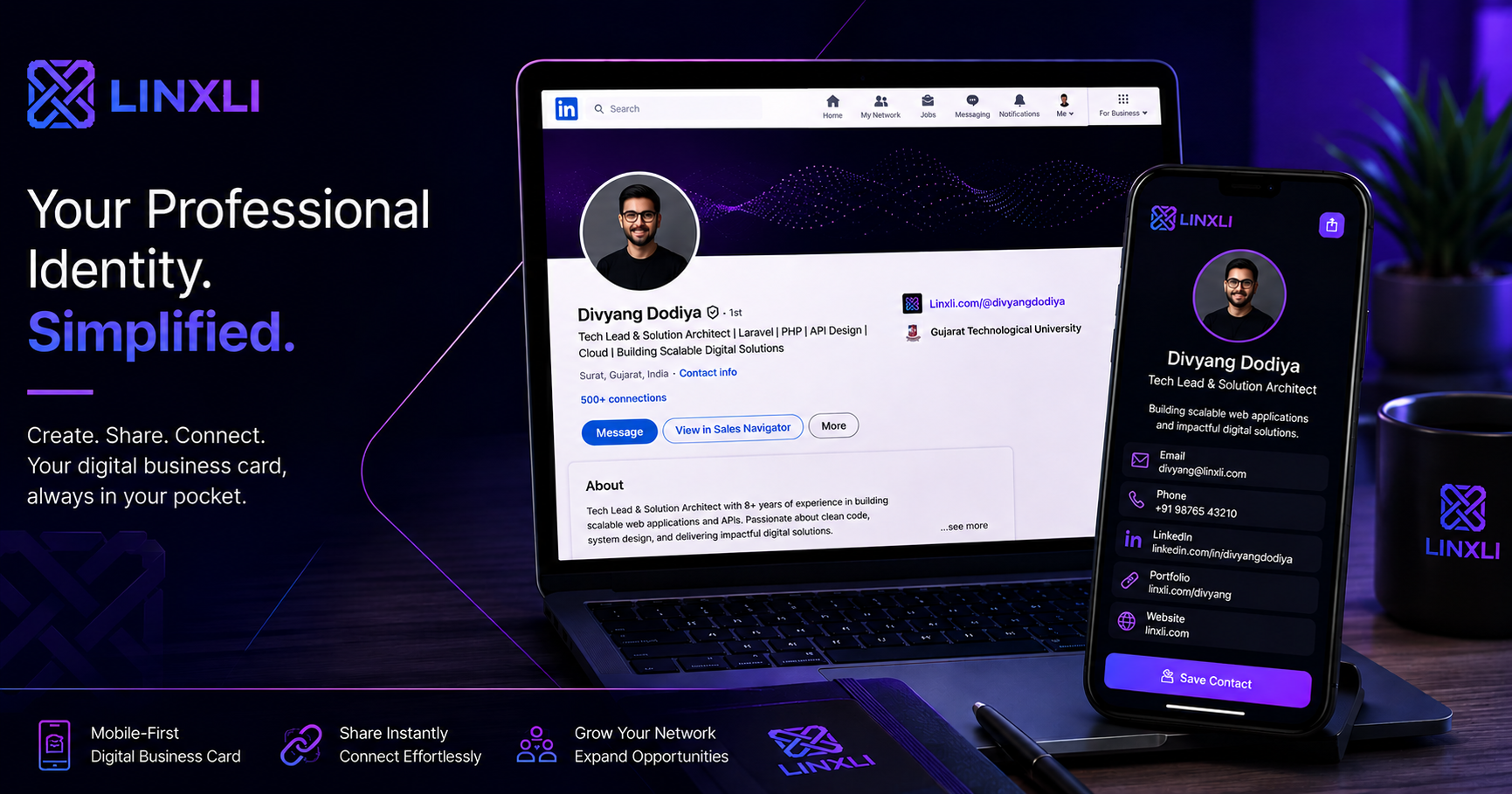
LinkedIn is where people go to verify you. A recruiter sees your name, a potential client gets a referral, a new contact looks you up after a meeting — they all end up on your LinkedIn profile first. The question is: what happens next?
If your profile just sits there with a list of job titles and a generic website link, you're leaving a lot of opportunity on the table. Adding a digital business card to your LinkedIn profile gives every visitor a fast, clear path to connect with you, book a call, or explore your work — without any back and forth. Here's how to do it.
Why LinkedIn Alone Isn't Enough
LinkedIn is a great platform for credibility and discovery. But it has real limits as a contact tool.
Your email address is often hidden behind connection walls. Your phone number isn't typically visible. Your portfolio might be linked somewhere but it takes clicking through multiple sections to find. And if someone wants to message you on WhatsApp, book a discovery call, or follow your work on another platform, LinkedIn gives them no easy way to do that.
This is the gap a digital business card fills. It's a single page that lives outside of LinkedIn and consolidates every way someone can reach or engage with you. Drop the link into your LinkedIn profile, and anyone who lands on your page gets instant access to all of it.
What a Digital Business Card Looks Like on LinkedIn
Before getting into the setup, it helps to understand what you're actually giving people.
A digital business card in the context of LinkedIn is a short, mobile-friendly page — usually at a URL like linxli.com/@yourname — that contains your photo, a brief bio, and a clean set of links. Typically this includes your email, phone or WhatsApp, portfolio, booking calendar, and any other platforms relevant to your work.
When someone visits your LinkedIn profile and clicks your link, they open this page on their phone, see everything they need in under ten seconds, and tap through to whatever is most relevant to them. No scrolling through a full website. No hunting for contact details buried in a PDF. Just a fast, clean, focused page.
The result is that your LinkedIn profile stops being a dead end and starts being the beginning of a conversation.
Where to Put Your Digital Business Card Link on LinkedIn
LinkedIn gives you several places to add a link. Using more than one increases the chances of people finding it.
The Website field in Contact Info. This is the most visible placement. Go to your profile, click "Edit contact info," and add your digital business card URL in the Website section. You can customise the label — instead of "Website," name it something like "My Links" or "Portfolio + Contact." This shows up near the top of your profile under your name and photo.
The Featured section. LinkedIn's Featured section lets you pin links, posts, and media at the top of your profile. Add your digital business card URL here as a link, give it a title like "Everything about my work, in one place," and write a short description. This placement is highly visible and tends to get clicks because it looks intentional and curated.
The About section. Write a strong two to three paragraph About section that ends with a line pointing to your link. Something like: "If you want to see my work, book a call, or reach me directly, everything is at linxli.com/@yourname." People who read your full About section are already interested — this is the moment to give them somewhere to go.
Your LinkedIn banner image. If you have a custom banner, add your URL as text directly on the image. It's always visible, it doesn't require any clicking to find, and it reinforces your brand every time someone visits.
Using two or three of these placements together means your link is hard to miss regardless of how someone is browsing your profile.
How to Set Up Your Digital Business Card in Under Two Minutes
You don't need to hire a developer or spend money on a fancy tool to do this. Linxli is free to start and takes less than two minutes to set up.
Go to linxli.com and create a free account. Choose a username — linxli.com/@yourname or linxli.com/@yourbrand works well and is easy to remember. From your dashboard, add the links that matter for your professional context: your email, WhatsApp, portfolio, Calendly booking link, and any other platforms you want people to reach you through.
Add a profile photo and a short, focused bio. Pick a clean theme. Copy your URL.
That's your digital business card, ready to paste into LinkedIn.
One thing worth enabling: Linxli's vCard download feature. When someone opens your page, they can tap one button to save your contact details directly to their phone's contacts app. For LinkedIn connections who want to actually follow up, this is the fastest path from profile visit to saved contact — no manual typing required.
What to Put on Your Digital Business Card for LinkedIn
The right links depend on what you want people to do after they find you on LinkedIn. Think about the most common next step for your audience and lead with that.
For professionals looking for work or new clients, the booking or discovery call link should be first. Make it easy for an interested party to schedule time without a back and forth email chain.
For freelancers and creatives, the portfolio link should be prominent. Your LinkedIn profile tells people about your experience — your portfolio shows them the actual work.
For business owners and founders, a WhatsApp link or direct contact option works well. People who find you on LinkedIn often want to move a conversation somewhere more direct.
Keep the page to five to eight links. More than that and people start skimming rather than engaging. The goal is to remove friction, not add new choices.
Frequently Asked Questions
Can I add a clickable link to my LinkedIn profile?
Yes. LinkedIn allows you to add clickable links in your Contact Info section (Website field), your Featured section, and within the body of your About section. Your digital business card URL goes in all three places for maximum visibility.
What is the best link to put on a LinkedIn profile?
A digital business card or link in bio page works better than a direct website link for most professionals. It gives visitors a fast-loading, mobile-friendly page with all your contact options and key links in one place, rather than dropping them onto a full website they have to navigate.
Do I need a premium LinkedIn account to add a digital business card?
No. The Website field, Featured section, and About section are all available on free LinkedIn accounts. You can add your digital business card link to all of them without a paid subscription.
How does a digital business card help with LinkedIn networking?
It closes the gap between someone viewing your profile and actually reaching you. Instead of a visitor having to search for your email, dig for your portfolio, or figure out how to book a call, your digital card puts all of that one tap away. It turns profile views into real connections.
Is a link in bio page the same as a digital business card?
They overlap significantly. A link in bio page built with a tool like Linxli functions as a digital business card when it includes your contact info and a vCard download option. The distinction is mostly semantic — both give people a single, fast-loading page with everything they need to connect with you.
Turn Your LinkedIn Profile Into a Contact-Ready Page
LinkedIn is where people find you. Your digital business card is where they reach you. The two work best together.
Adding one link to your LinkedIn profile — in the right places, pointing to a clean page with all your contact and portfolio information — turns every profile visit into a potential conversation instead of a dead end.
Try Linxli free and go live in under 2 minutes at linxli.com. Set up your digital business card, drop the URL into your LinkedIn profile, and let your page do the work of converting visitors into connections.